05/04/2016

Blogging is Dead? Oh Crap! Here We Go Again

Blogging is Dead? Oh Crap! Here We Go Again

Link to 2 Create a Website Blog

Blogging is Dead? Oh Crap! Here We Go Again

Posted: 04 Apr 2016 09:06 AM PDT

Blogging is Dead

Over the past few months I’ve seen several posts about blogging being dead or dying.

And I’m not talking about people who stopped blogging for other business/life priorities.

I totally get and respect that.

I’m referring to those who say people don’t read blogs anymore.

Oh geez… here we go with the generalizations!

That sort of reminds me of email marketing. In case you haven’t kept up, it’s already died several times.

First, RSS/blogging supposedly killed it in 2005. Then social media became the next assassin a few years later.

Email Marketing is Dead

Let me play devil’s advocate here.

If it’s really “dead”, then why are there new email products like Nathan Berry’s Convert Kit (no affiliation) killing it in 2016?

Email might seem obsolete for certain demographics, and yes, average open rates have declined across the board.

But email is far from dead. My daily subscriber count is still in the double digits, which indicates people still subscribe.

The bigger challenge is optimizing open rates, and that’s a whole other blog post! 😉

The Truth Behind The “Dead” Declaration

The reason people often declare that something is dead is simply because it’s not working for them anymore.

For example, if you lost most of your Google traffic over the past few years, you might feel that SEO is dead.

I disagree.

To say SEO is dead would mean there is no possible way to optimize a site for any kind of organic traffic.

SEO is still alive and well. You might say it’s “dead.” I prefer to say “it’s evolved” because off page factors now have more weight than on-page.

Now we can get into the whys, but I’ve ranted enough about that. Let’s just keep it short and say “It’s Google’s business, not mine.” :-)

Back to Blogging

If you started blogging when SEO was easier and social media was just starting to blossom, you probably noticed that the more you blogged, the more traffic and comments you received.

Not to mention, people were encouraged to comment because there was potential “link juice” that would help them with search engine optimization.

Blogging was a quantity game in many respects.

Also, we didn’t have many places to get information from our favorite people online. So blogs became the preferred option.

Fast forward to today where we have Instagram, Facebook, LinkedIn, Snapchat, Vine, Periscope, Blab, and probably 246 other sites I’ve never heard of.

Some bloggers are even using Facebook Notes or Live Streaming as their “blogs/vlogs” because they realize FB will prioritize content and video hosted on their site.

As you probably know, Facebook wants to keep people on Facebook.com and lowers the reach on external links, while increasing the reach on content hosted there.

The dilemma people are facing is, “Why blog when I’m getting better engagement on social media than on my own site??”

Can you relate?

My Journey & Blog Evolution

Honestly…

I can’t imagine NOT having a blog.

It’s my direct line of communication to my most loyal followers.

It’s my home base.

Now, I may not blog on a regular basis like I used to (and thank God I no longer feel the pressure to put something out if I really don’t have anything newsworthy to share), but it’s still a very important part of my business.

But my blog didn’t always have a defined role.

When I started back in 2006 (Holy crap! I just realized that it’s been 10 years!), I really had no strategy for how I was going to use my blog.

I was also openly critical about total-post site layouts because of the way the content is arranged by default. It was, and still is not optimal for navigating and SEO because of how posts are arranged and displayed.

(Of course, that can be fixed.)

If I can be honest, the main reason I started a blog was because it was “the thing to do” at that time. You know… that good ole’ shiny object syndrome!

So I jumped on the bandwagon.

Well, let me tell you. For the first 18 months, it was like a ghost town up in here! :-)

And I foolishly thought because my main site already had thousands of visitors per day that people would just flock to my new blog posts and start commenting.

Boy, was I wrong!

Then in 2008, I changed my voice to a more personal, relaxed tone, which instantly made the task of blogging more enjoyable.

Blogging became more enjoyable the moment I realized I could relax and be me

I also started using social media to announce my new posts. A few years later, I synced it up to my email list.

Equipped with a new voice and a more direct traffic funnel that was NOT reliant on Google (thankfully), my blog started to have more of a purpose.

I also saw an increase in conversions with affiliate links on my blog over the years.

And if you think about it, that makes sense. Your most loyal followers are going to be the ones who sign up for your list and trust your product recommendations, right?

And since my list is tied to my blog, when I launch posts like this, it was nice to see the affiliate sales coming in immediately. (Thank you, by the way!)

I also became much more selective about what I blogged about… especially since I send out an email with every new post.

Not only do I enjoy blogging more than I did years ago, but it’s how I keep you, my loyal followers, up to date on what I’m working on and any major updates in Internet marketing.

And once I launch my new course section, I will use my blog as a platform to share what I learned.

There’s Going To Be a Shift

Get ready… because my content is about to grow up!

I’ve got some revealing, thought-provoking info to share that I know is going to hit home with many of you on a personal and business level.

My blog is going to play a very important role in how I communicate and educate you during this evolution. And BOY do I have a lot to share!

Remember my burnout in 2015? Well, I didn’t tell the whole story because I didn’t fully understand the source of it.

I do now, and it’s directly tied to me doing something you might be doing too. I can’t wait to open up about this in a future post and/or podcast. I know many of you will relate to this.

So to answer the question, no, I don’t think blogging is dead. But if you were only doing it for strategies that are no longer working, then it may be dead…

to YOU!

It’s all relative, of course.

Something Might Be Dead to You But Relevant for Someone Else

Has Social Media Hurt Blogging?

In some ways I believe it has, but not because people stopped liking blogs.

Social media has changed people’s priorities. After all, there are only so many hours in the day and there’s a ton of content to consume!

And since people spend more and more time on social media, they might not have as much time to read as many blogs as they used to.

Nevertheless, if your content still resonates with them and helps in some way, your loyal followers will make time to read your blog.

Blogging From The Heart

From time to time, I get emails or comments like the one below and they make me smile.

larry

Thanks, Larry! I do blog from the heart, and always hope that comes through in my writing.

One reason I changed up my style years ago is I realized I enjoy reading blogs with a more personal tone.

There’s so many sites with recycled tips on Internet marketing that are void of personality, passion and vulnerability. I appreciate people who are not afraid to mix it up!

Rob Cubbon just did this with a recent rant. This was so unlike him, but I was engaged from the start! And if you don’t like curse words, don’t click this link. 😉

Adrienne Smith does this very well on her blog, and I was so sad to hear about her hiatus. But I totally get it and fully respect it.

Kim George is also someone to learn from in this area.

Kim wrote a revealing post that explained how hiring a coach and getting clarity on her blog has been a game-changer and helped her focus.

I had the pleasure of meeting Kim back in February, and she’s now a new member of my mastermind group!

kimAndLisa

All these bloggers are great examples of how your blog can be used to humanize your brand so people don’t forget there is an actual person behind the site.

It’s nice to offer tips and talk about the highs, but don’t be afraid to share the lows — especially if you can turn them into a relevant lesson your audience can learn from.

This kind of content is a great way to utilize a blog. It reminds people you are human, but teaches a lesson at the same time.

I used to only blog from the head. Now I put my heart into it too. :-)

I feel like I’m just now finding my grove with blogging, and I know that sounds crazy after all this time.

What Do You Think?

Have you changed your stance or strategy on blogging over the last few years?

Is it still an important part of what you do, or are you trying to see how it fits in?

I’d love to hear what you think about this.

Why do YOU blog? Or have you stopped?

16/03/2016

Bye Udemy, Hello MemberMouse! – Taking My Site to The Next Level!

Bye Udemy, Hello MemberMouse! – Taking My Site to The Next Level!

Link to 2 Create a Website Blog

Bye Udemy, Hello MemberMouse! – Taking My Site to The Next Level!

Posted: 15 Mar 2016 08:15 AM PDT

Bye Udemy, Hello MemberMouse

What the heck has taken me so long to sell products from my own site?

Honestly, it was FEAR — which created massive amounts of indecision, analysis paralysis and procrastination!

The idea of being completely responsible for the orders, payments, etc. really did intimidate the crap out of me, but I’ve chosen a plugin (MemberMouse) that helped eliminate that fear because of the amazing support they offer in that area.

Yes, there are more cost-friendly options out there (even free ones), but support and continued product enhancements were the two most important factors in my decision.

So now that I’m over that fear and extreme indecision, I’m ready to move forward!

This is going to sound cheesy, but I feel like teaching is something I was put here to do. I can’t tell you how much I enjoy helping people learn and making videos. I’m excited to finally sell on a platform that I actually own.

By the way, I’m not an affiliate for MemberMouse yet and I explain why in the podcast. But if you are familiar with my work, you probably already know why. 😉

I’ve Been Recording Like Mad!

I’m working on courses related to blogging, video and just finished my course on Camtasia.

I’m so excited for you to learn it in a quick and non-intimidating way. I’m even going to teach neat tricks such as animation.

Did you notice how I animated my logo at the beginning of my last video? (Play the start of the video below.) That was done in Camtasia!

Camtasia is so much more than just screen recording software. Sometimes I edit talking head videos in the software too.

Let’s Get to The Podcast

Enough about me! Let’s move on to this month’s podcast. (View the transcript or right-click this link and “Save As” to download the audio file.)

I’m going to catch you up on the latest happenings with Udemy.

There are some big, big changes coming down the pike. If you’re thinking of selling on the platform, you can’t miss this!

A lot of people are upset, but overall, it’s going to be best for Udemy and instructors down the road. Nevertheless, I’m glad I’m making the move to go self-hosted with my courses.

In This Episode

  • Udemy’s new pricing structure and my thoughts
  • My opinions on who Udemy is best for
  • Why I chose MemberMouse over more popular and less costly plugins like WishListMember, S2Member, etc.
  • Why I’m waiting on doing an actual membership site, even though I’m using a membership plugin
  • Why it may still be beneficial to create courses on Udemy even if you are selling from your own site
  • The necessary move bloggers & entrepreneurs are making that you should be paying attention to

Show Notes

01/03/2016

Create Beautiful WordPress Content With This Drag & Drop Tool

Create Beautiful WordPress Content With This Drag & Drop Tool

Link to 2 Create a Website Blog

Create Beautiful WordPress Content With This Drag & Drop Tool

Posted: 29 Feb 2016 07:16 AM PST

Easily Design Beautiful WordPress Pages & Posts

Whoa…

How did I not know about this plugin for over two years?

I’ve tried many different drag and drop themes and/or visual editors/plugins, but I’ve never featured them here because they were either:

  • Buggy
  • Difficult to learn
  • Design elements weren’t mobile friendly/responsive

Well, I’ve finally found one that’s beginner-friendly and I feel confident recommending it. (Video demo below)

I’ve spent the last week immersed in a plugin called Visual Composer (affiliate link) and I’m so excited about what I’m going to be able to do within my pages and posts.

It’s a drag and drop in-page/post designer for WordPress that is advertised to work with any theme.

It comes pre-loaded with over 50 page layouts for you to use within your posts and pages.

I’m using the plugin to style this post to give you an idea of what you can do.

What I Love Best

For me, the best feature is the ability to add columns, rows, tabbed and accordion-styled content within your existing pages and posts.

You can add/delete columns and rows with ease, and drag elements to different areas of the page/post.

For example, to add the columns below I just added the “Feature Template” to this post.

image0

I am a text block. Use this area to describe the image above.

image

I am a text block. Use this area to describe the image above.

The above template would be perfect for a homepage design.

So instead of hunting for a theme with thumbnails on the homepage, just set your homepage to a “Page” and style it with one of the Visual Composer layout templates.

You can control how many thumbnails will appear per row, animate them, control the image size, etc.

Create Tabs in a Flash

I don’t know about you, but I would not know how to pull off creating tabbed content without learning some CSS.

But with VC, all you have to do is select “Tabs” from the “Add Element” menu and add your text.

Check out what I created below in about 2 minutes…

Tabbed Content Title

This is text inside tab 1.

This is text inside tab 2.

This is text inside tab 3.

This is a great way to condense content on a page. You can even choose which tab you want to be active when the page loads!

Create a Call to Action Box in an Instant

To create a call to action box, I just chose the Call to Action Element from the list and customized the color, layout, fonts, etc.

This is how it turned out…

This is a Call to Action Box

For this box, I was able to control the styling, width, color scheme, animation and alignment.

Style Your Alerts

You can even create customizable message boxes with left-aligned icons.

I am a success alert box.

I am an information box.

I am an error box.

I am an alert for a shopping site.

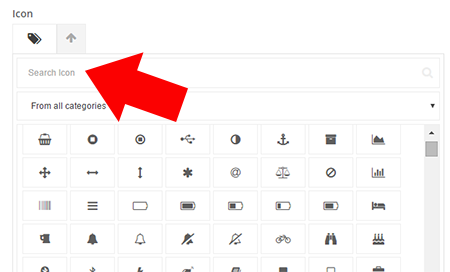
There are also a number of icons you can choose from with the message boxes. There’s even a search feature!

Search Icon

Customizations Galore!

For every element you can add to your page (text box, alert box, etc.) you can customize the look and feel. Here are some things you can control (when applicable).

  • Alignment
  • Fonts (Includes tons of Google Fonts)
  • Colors
  • Image size
  • Animation
  • Width
  • Margins, Padding & Borders
  • CSS (for advanced users)

Are There Any Cons?

My biggest wish is that the plugin would contain some kind of preview of all the available templates before you use them.

I’ve spent a lot of time adding different ones to my page and previewing them just to see what they look like.

Be prepared to spend at least an hour learning about what this plugin can do because there are a LOT of features. It’s almost overwhelming.

overwhelmed

Another con is when you are using the text editor, you have to make one extra click to edit text boxes instead of typing right into the editor like you’re used to doing without the plugin.

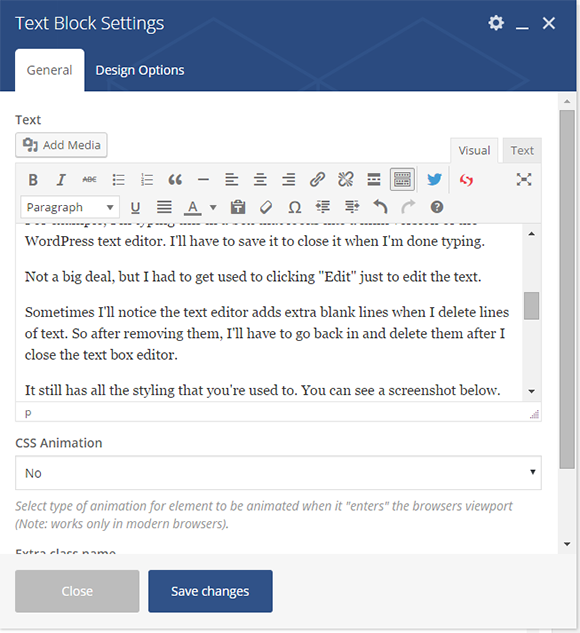
For example, I’m typing this text in a box that is just a mini version of the WordPress text editor. I’ll have to save and close it when I’m done typing.

Not a big deal, but I had to get used to clicking “Edit” just to edit the text when I’m already in the editing screen.

It still has all the styling that you’re used to. You can see a screenshot below.

text

Also, the text editor will sometimes add extra blank lines when I delete lines of text. So after removing them, I’ll have to go back in and delete them after I close the text box editor you saw above.

The other potential con could be loading issues on the front and backend. I say “potential” because it hasn’t been a problem for me.

I have dedicated hosting so things tend to run a lot faster on dedicated servers vs. shared. So for me, it’s hard to know.

That’s why it’s great they offer a free trial so you can test for yourself.

And as far as page loading, you have to use common sense.

If you add a lot of animation to your pages then of course it’s going to hamper the loading times. However, the plugin itself has not affected site speed from what I can tell.

I went a little overboard with animation in this post just to show you what the plugin does. However, I think you should use it sparingly.

And finally, I wish you could use hex values when choosing colors. For example, instead of choosing “red”, I want to be able to select a very specific value like #d22929.

For some elements you can, but for others you cannot.

Will This Work With Any Theme?

The creators say it will, but you won’t know for sure until you use it.

I’ve tested it on 3 different themes (2 StudioPress themes and Twenty Sixteen) and they have all worked.

Make use of the free trial to see how it works.

See VC In Action

I’ve created a video to demonstrate how the plugin works.

09/02/2016

6 Quick Fixes That Will Instantly Improve Your Blog

6 Quick Fixes That Will Instantly Improve Your Blog

Link to 2 Create a Website Blog

6 Quick Fixes That Will Instantly Improve Your Blog

Posted: 08 Feb 2016 09:39 AM PST

6 Quick Fixes That Will Instantly Improve Your Blog

Sometimes it’s the smallest changes that make the biggest differences. How many of these practices are you implementing on your blog right now?

Is Your Site Fully Responsive?

Just because you have a responsive theme, doesn’t mean every part of your site is mobile friendly.

Look at the image below…

Image Align

This is an iPhone 6 screenshot from an article on my hair site. This right-aligned image looks great on a desktop, but it looks ugly on a mobile device because of how the text wraps.

And with 70% of my nearly 200,000 visitors per month coming from mobile now, this is something I need to keep tabs on. Unfortunately a lot of my older posts have images aligned like this.

Even though a recent WordPress update promised to make images more responsive, check some of your older pages. You may still find they need adjusting… especially if you’ve aligned them manually in WordPress.

I’ve made a commitment to put images on lines by themselves without alignment — as opposed to left or right-aligning them.

I’m in the process now of auditing my older pages so images look better on mobile browsers.

Don’t forget to check your site on your smartphone from time to time. I’ve unearthed some ugly surprises thanks to large images that are outside of the margin and awkward wrapped text.

If you notice an image that is outside the margin of your site and throwing your entire site out of whack, you can remedy this by removing the width and height parameters in the HTML code.

height and width

Some themes render correctly on their own, but if yours doesn’t, then that’s one way to fix it.

From a page-loading perspective, this could have a tiny impact. However, most people have high-speed Internet access today, so it’s less of an issue.

What The Font?

Do you know the difference between Serif and San Serif fonts?

No worries. I didn’t until about 3 weeks ago.

San Serif fonts don’t have tails on the letters and are actually better for Web browsing. They they look a lot cleaner and will give your site a more modern look.

sanSerif

Image Source: TheRealKatie.net

Many themes and image editors like Canva are now using Sans Serif fonts and keeping up with the font trends. Here are the top 10 Sans Serif fonts.

Speaking of Canva, check out my video below on how to design an image template for your site in only 2 minutes!

It’s amazing how Canva makes a non-designer like me look like I really know a thing or two about design, right?

Gotta love it!

OK…now back to the topic.

If you need fonts for your graphic program or text editor, download them from 1001Fonts.com. I use them all the time to add fonts to my computer for Photoshop use.

You can sort by Sans Serif fonts and view them all at onceThe ones with the green price tag are free for commercial use.

Looking for a different font for WordPress? This tutorial will show you how to add custom fonts to your site.

And if you want to learn how to pair fonts in your images, check this out.

Use Big, Bold High-Res Images

Images help break up your text and they breathe life into your content.

But nothing says “amateur” like a low-res, grainy image!

Ew!

If you need some eye-catching, high-res images, check out Gratisography by Ryan McGuire.

You can use the images for your personal and commercial projects and they are 100% free!

Free Photo From Gratisography

Yes, you read that right. They are free and with no attribution required! See for yourself.

Hurry and download them before Ryan changes his mind! :-)

I love using a nice big lead image to start my posts. These are great for social media, but I also find them incredibly fun to create.

Also play around with font pairing to make your image pop even more.

Write Shorter Sentences and Paragraphs

I want you to notice something.

Isn’t it much easier to read my content when I break the text up like this?

Now read the paragraph below…

As you begin reading this, notice how bad this looks when I don’t break my content up? Don’t laugh. People still write like this. I bet you’re already starting to feel overwhelmed and drained by this looooooooong paragraph. You’re probably still reading, but only because I’m making a point and you may be curious about what I’m going to write next. And if you’re reading this on your smartphone…oh boy… God help you. :-) I know your eyes want to cross, skip around or at least take a break. Long paragraphs are a turn-off to our eyes and minds because the fast-paced, digital world has forced us to desire quick consumption. We like to scan and speed read through articles. So if you’re still writing your paragraphs like this, please stop. Start breaking up your content more. Your readers will thank you and probably read even more of your content.

Are you cross eyed yet?

crosseye

My bad. Just trying to make a point. 😉

Don’t forget: A 4-line paragraph might look fine on a 27″ monitor, but that same paragraph turns into 10 or more lines on a smaller device.

White Space is Your Friend

I remember when website owners were seemingly afraid of white space. Too much of it was perceived as dull and boring.

Now we associated it with professionalism, cleanliness and it’s practically become a design standard.

Today it’s all about larger margins, adequate line spacing and shorter paragraphs. All create white space to make your site easier to scan/read.

Embrace the White Space

Write For Humans. Not Google.

Remember the good ole’ days of article generation software?

For the newcomers out there, you could buy software to churn out keyword-optimized content that would hopefully rank on Google.com.

What about calculating keyword density?

Just think. We actually counted how many times we used a specific phrase we were targeting to help with search engine optimization.

Now that SEO has changed, I spend much less time on keywords and more time ensuring my blog has a casual, consistent tone.

So relax…

Be you!

One thing I love about blogging is it’s much less formal, and gives us a license to write in a more casual format that brings out our personalities.

That’s what makes it fun!

If you don’t enjoy blogging and it seems like a chore, do some exercises to help find your own voice.

26/01/2016

How to Build Traffic in a Crowded Blogosphere – Free Guide


How to Build Traffic in a Crowded Blogosphere – Free Guide

Link to 2 Create a Website Blog

Posted: 25 Jan 2016 10:21 AM PST
How to Get Traffic in a Crowded Blogosphere - Free Guide!
People often perceive traffic building as a one-size-fits-all process that everyone can follow and receive similar results.
Sure, there are basic principles and guidelines you can follow such as…
  • write great content
  • develop social media strategies
  • start a YouTube Channel
But at the end of the day, traffic building is typically a unique journey for every person.
Here’s why…
  1. There are so many different platforms to market your site on
  2. Not every method works as well for every site/niche
  3. Everyone has a different skill set, work ethic, motivation, etc.
Building traffic is work, but you can simplify the process in the beginning if you use this simple strategy…
Choose one platform that aligns with your strengths and is occupied by your target audience. Stay committed to mastering that one area, and don’t feel that you have to master every platform.
You can read more about this and other tips in this free guide (with a cheat sheet) that will put traffic building into perspective and keep you from feeling overwhelmed.
It’s perfect for those who need a little motivation and guidance.
The Keep It Real Guide to Building Traffic in a Crowded Blogosphere
View the PDF or download the ZIP file to your computer.
Be sure to download it ASAP because in the near future, I will be requiring an opt-in to get it.

29/12/2015

9 WordPress Tricks You’re Probably Not Using But Should

9 WordPress Tricks You’re Probably Not Using But Should

Link to 2 Create a Website Blog

9 WordPress Tricks You’re Probably Not Using But Should

Posted: 28 Dec 2015 08:41 AM PST

9 WordPress Tricks You Aren't Using But Should

Not only is this a quick & easy read, but I guarantee you’ll discover at least one trick that you’ll want to implement on your WordPress site.

Insert a Link Shortcut

Press Control K to insert a link in WordPress

Geez. How did I miss this shortcut for so long?

The next time you add a link to a post or a page, highlight the text and hit Control – K (Command K on Macs) and the “Insert Link” box will appear like magic.

Bam! :-)

Highlight Your Recent Content With a “What’s New” Tab

Great Way to Highlight Recent WordPress Content

I’m often asked how I setup the “What’s New” tab at the top of my site.

I created this menu item on my navigation to highlight new content since I use my homepage for introductory content that leads to more subscribers and course income.

First create a new category and call it “New” or whatever you’d like.

Be sure to tag all your posts with this category so they’ll automatically show up there.

Then add this to category to your main menu using the Menu editor on WordPress.

How to Add Your Category to Your Menu

Customize The Top of Your Category Pages

How to Customize Your Category Pages

This tip goes along with the previous one. If you click on my “What’s New” tab, you’ll notice a gray box at the top of the page that encourages people to join my email list.

Subscribe Box

I created this promotional box by editing the top of my category page.

If you have a StudioPress theme (affiliate link), this is as easy as clicking on your category and then “Edit Category” from your WordPress dashboard bar that appears when you are logged in.

Edit Category

Once you click “Edit Category”, scroll down to the boxes titled “Archive Headline” and “Archive Intro Text.” This is where you enter your text.

Good news! HTML code is allowed here. :-)

Edit Category Pages

If you don’t have a StudioPress theme, this article will guide you.

Change Your Default Post Category

How to Change Your Default Category in WordPress

Because all my posts go into the “New” category (as explained above) I thought it would be convenient to set that category as my Post default.

After all, who wants “Uncategorized” as the default? Not me!

You can easily set your default category to whatever you’d like by going to Settings > Writing.

Change Category Default

I was so happy to discover this because I would always forget to change the default Uncategorized category when creating a new post. Problem solved!

How to Display a Code Box

How to Display Code in a Box with WordPress

Ever wonder how people created those boxes of code for their readers to copy and paste like this?

<title>Your HTML Title Goes Here</title>  <meta name="description" content="Insert Your Meta Description">   

Wonder no more!

Install the SyntaxHighlighter Evolved plugin. There are different styles and settings so you can customize the display.

Roll Back Your Plugins

How to Roll Back Your Plugins

I’ve needed this so often in my blogging life.

Have you ever updated a plugin and something broke or you preferred the previous version?

Install WP Rollback and you can revert any plugin back to a previous edition. You can also roll forward.

Reverse Your Comments From Newest to Oldest

How to Reverse Your Comment Order in WordPress

This tip may seem incredibly basic, but have you considered this? …

Showing the oldest comments first (the WordPress default) could actually discourage additional comments.

Say you have an old page or post on your site that still gets a lot of traffic.

If your oldest comments are listed first, it may look as if no one is discussing the topic anymore — especially if your comments are broken up into multiple pages.

However, showing the more recent comments first, will highlight the newer ones, and encourage the discussion to continue.

I made the switch a while back because many articles on my hair site are a few years old, but still get a lot of comments thanks to getting found in Google.

A woman commented on an article and wrote that she was replying even though the discussion is old, but there were actually 10 replies made in the last couple of months.

Because I had the oldest comments first and the new ones were on another page, she missed the latest ones altogether and thought no one was discussing the topic anymore.

Lesson learned. Now I always display newest comments first on my blogs.

You can do this easily by going to Settings >> Discussion and checking the box that says “comments should be displayed with the newer comments at the top of page.”

Display comments newest to oldest

The other option is to remove dates from comments altogether. I’ve noticed a lot of bloggers do this now.

Change Your Optimal Image Sizes

How to Change Default Image Sizes

We all tend to have our image size preferences, but did you know that you can tell WordPress what they are and overwrite the defaults?

Go to Settings >> Media to update to set the defaults for thumbnails, large and medium images.

The next time you add images to your content, these sizes will be the default.

Sweet!

Speed Up Your Sluggish Blog by Killing Bloated Plugins

Discover & Kill Bloated WordPress Plugins

Slow-loading pages are not only a pain for your readers, but it can negatively impact your search engine rankings.

Yes, page speed is one of Google’s 8.7 million page ranking factors.  ðŸ˜‰

But wouldn’t you like to know exactly what’s causing the lag?

Install the Plugin Performance Profiler plugin to find out what plugin is taking up the most resources. Just make sure you delete it after you find the culprit. It’s a resource hog.

Kind of ironic, eh? :-)

Sure, some “bloated” plugins like “Related Posts” (plugins that scan your entire site) are hard to get rid of because they are useful. I just keep these to a minimum.

In fact, I try to keep my active plugin totals around 20 for optimal loading and to minimize security risks.

Also remember not all plugins need to be active at all times. For example, WP Rollback can be deactivated until you are ready to update your plugins.

That’s all folks! Hope you learned something new that you can use.

Hope you’re enjoying your Holiday. :-)